The European Space Agency
Home
APEx Application Propagation Environments
Main navigation
  • Algorithm Support
  • Project Environments
    QGIS
    CodeServer
    JupyterLab
    Web Portal
    Geospatial Explorer
    Documentation Hub
    User Forum
    Product Catalogue
  • Resources
    • Algorithm Catalogue
    • Data Catalogue
    • Geospatial Explorer
    • Demo Project Environment
  • Community
    • Documentation
    • User Forum
    • FAQ
  • About APEx
    • Mission Statement
    • News
Contact us
Main navigation
  • Algorithm Support
  • Project Environments
  • Resources
  • Community
  • About APEx
APEx - Documentation Portal
  1. Guides
  2. Admin Guides
  3. Project Web Portal
  4. Customizing Site Name and Slogan
  • Welcome
  • On-demand EO services
    • Using openEO service
    • Supported Platforms
  • Project Environments
    • Use Cases
    • Customisation
    • Accessing your environment
    • Geospatial Explorer
    • Project Web Portal
    • Code Server IDE
    • JupyterLab IDE
    • QGIS as a Remote Desktop
    • Product Catalogue
    • Documentation Portal
    • User Forum
  • Algorithm Support
    • On-Demand EO Services
    • Use Cases
    • Algorithm Porting
    • Algorithm Onboarding
    • Algorithm Upscaling
    • Algorithm Enhancement
    • Toolbox Cloudification
    • Algorithm Intercomparison
  • Guides
    • Developer Guides
      • Authentication
        • Creating an APEx account
        • Creating APEx single sign-on token
      • openEO
        • Creating openEO based services
        • Upscaling openEO based services
      • EOAP
        • Creating EOAP based services
      • APEx Product Catalogue
        • Ingesting STAC metadata in APEx Product Catalogue
        • Linking APEx Product Catalogue with an openEO service
      • APEx Algorithm Catalogue
        • Registering your service
        • Creating benchmarks for your service
      • File format recommendations
    • Admin Guides
      • Creating an APEx account
      • Custom domains for your project environment
      • Geospatial Explorer
        • Configuring the APEx Geospatial Explorer
      • Project Web Portal
        • Login to the Project Web Portal and the Drupal content overview
        • Manage web pages or add a new page
        • Edit web pages via paragraphs
        • Add content and/or visuals
        • Add a Call-To-Action (CTA)
        • Add news items and an overview of the latest or all news
        • Add an event and an overview of the latest or all events
        • Add a web form
        • Add a logo (partners) banner
        • Add publications or downloads (files)
        • Edit the menu navigation
        • Edit the footer
        • Customizing the look and feel
        • Manage Partners Block
        • Manage Tags and Themes
        • Customizing Site Name and Slogan
    • Consumer Guides
      • Using the Geospatial Explorer
  • Interoperability and Compliance Guidelines
    • Definitions & Actors
    • Algorithm Service Development Options
    • Algorithm Developer and Provider Guidelines
    • Data Provider Guidelines
    • Algorithm Hosting Platforms Guidelines
    • Geospatial Explorer
    • Federated Business Model
  1. Guides
  2. Admin Guides
  3. Project Web Portal
  4. Customizing Site Name and Slogan

Customizing Site Name and Slogan

When you first open an APEx Project Web Portal, it uses a default site name and slogan. You can update these settings by following the steps below:

  1. In the administration menu, go to Website Settings.
  2. Open Site Settings and update the site name and slogan.
  3. Click Save configuration to apply your changes.

Screenshots
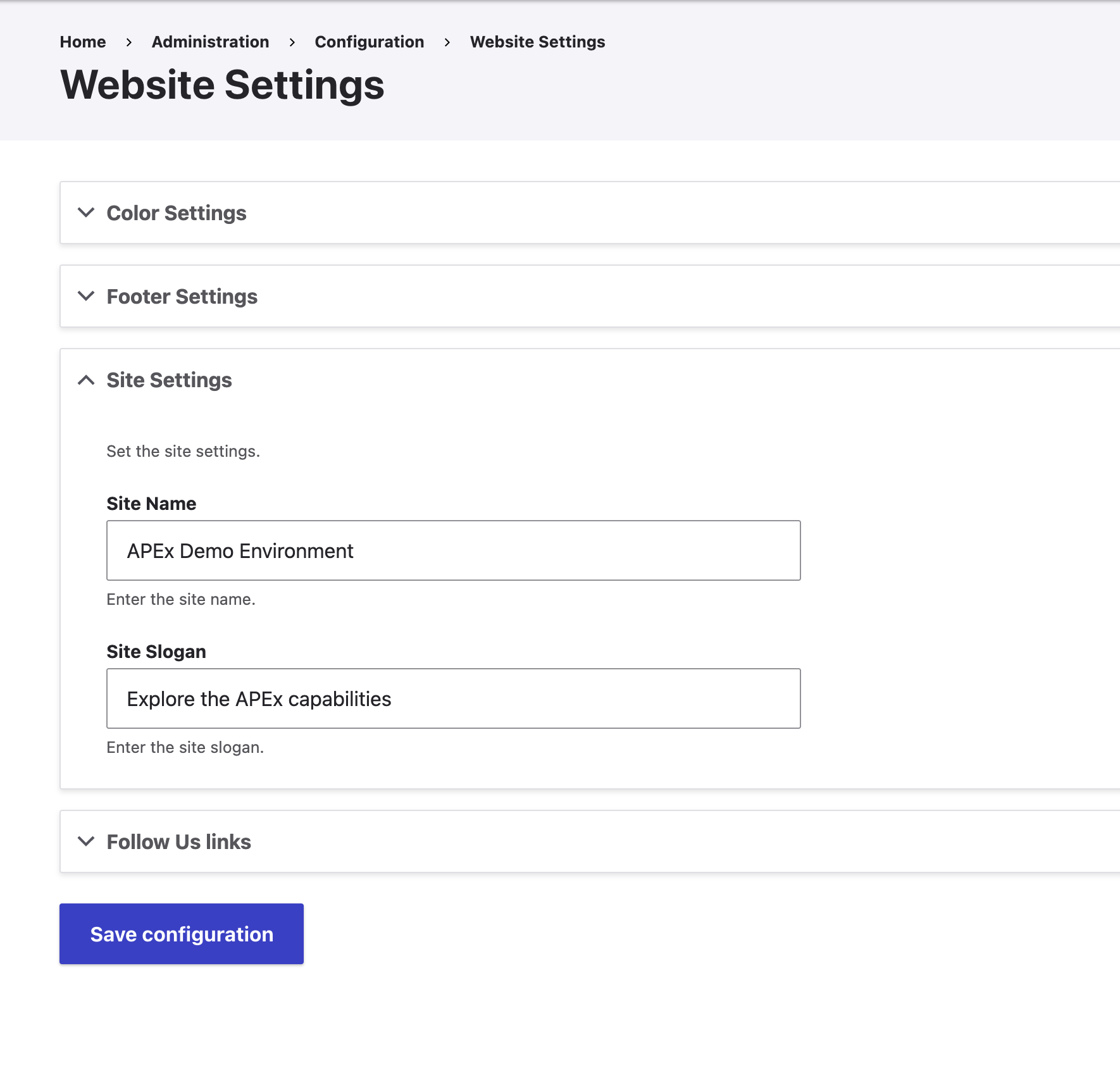
Website Settings - Site Settings

Website Settings - Site Settings
Manage Tags and Themes
Using the Geospatial Explorer