The European Space Agency
Home
APEx Application Propagation Environments
Main navigation
  • Algorithm Support
  • Project Environments
    QGIS
    CodeServer
    JupyterLab
    Web Portal
    Geospatial Explorer
    Documentation Hub
    User Forum
    Product Catalogue
  • Resources
    • Algorithm Catalogue
    • Data Catalogue
    • Geospatial Explorer
    • Demo Project Environment
  • Community
    • Documentation
    • User Forum
    • FAQ
  • About APEx
    • Mission Statement
    • News
Contact us
Main navigation
  • Algorithm Support
  • Project Environments
  • Resources
  • Community
  • About APEx
APEx - Documentation Portal
  1. Guides
  2. Admin Guides
  3. Project Web Portal
  4. Create a restricted page
  • Welcome
  • On-demand EO services
    • Using openEO service
    • Supported Platforms
  • Project Environments
    • Use Cases
    • Customisation
    • Accessing your environment
    • Geospatial Explorer
    • Project Web Portal
    • Code Server IDE
    • JupyterLab IDE
    • QGIS as a Remote Desktop
    • Product Catalogue
    • Documentation Portal
    • User Forum
  • Algorithm Support
    • On-Demand EO Services
    • Use Cases
    • Algorithm Porting
    • Algorithm Onboarding
    • Algorithm Upscaling
    • Algorithm Enhancement
    • Toolbox Cloudification
    • Algorithm Intercomparison
  • Guides
    • Developer Guides
      • Authentication
        • Creating an APEx account
        • Creating APEx single sign-on token
      • openEO
        • Creating openEO based services
        • Upscaling openEO based services
      • EOAP
        • Creating EOAP based services
      • APEx Product Catalogue
        • Ingesting STAC metadata in APEx Product Catalogue
        • Linking APEx Product Catalogue with an openEO service
      • APEx Algorithm Catalogue
        • Registering your service
        • Creating benchmarks for your service
        • APEx Algorithm Dashboard
    • Admin Guides
      • Creating an APEx account
      • Grafana monitoring dashboards
      • Custom domains for your project environment
      • Geospatial Explorer
        • Configuring the APEx Geospatial Explorer
      • Project Web Portal
        • Login to the Project Web Portal and the Drupal content overview
        • Manage web pages or add a new page
        • Create a restricted page
        • Edit web pages via paragraphs
        • Add content and/or visuals
        • Add a Call-To-Action (CTA)
        • Add news items and an overview of the latest or all news
        • Add an event and an overview of the latest or all events
        • Add a web form
        • Add a logo (partners) banner
        • Add publications or downloads (files)
        • Edit the menu navigation
        • Edit the footer
        • Customizing the look and feel
        • Manage Partners Block
        • Manage Tags and Themes
        • Customizing Site Name and Slogan
    • Consumer Guides
      • Using the Geospatial Explorer
  • Interoperability and Compliance Guidelines
    • Definitions & Actors
    • Algorithm Service Development Options
    • Algorithm Developer and Provider Guidelines
    • Data Provider Guidelines
    • Algorithm Hosting Platforms Guidelines
    • Geospatial Explorer
    • Federated Business Model
  1. Guides
  2. Admin Guides
  3. Project Web Portal
  4. Create a restricted page

Create a restricted page

Use a restricted page for content that should not be publicly accessible on your project portal. You need to be logged in with an account that can create and edit pages. See Log in to get started.

Create a new page

  1. Open Content in the navigation toolbar.
  2. Choose Add a page, or select Page from the Content dropdown menu.
  3. Enter a title and add the page content.
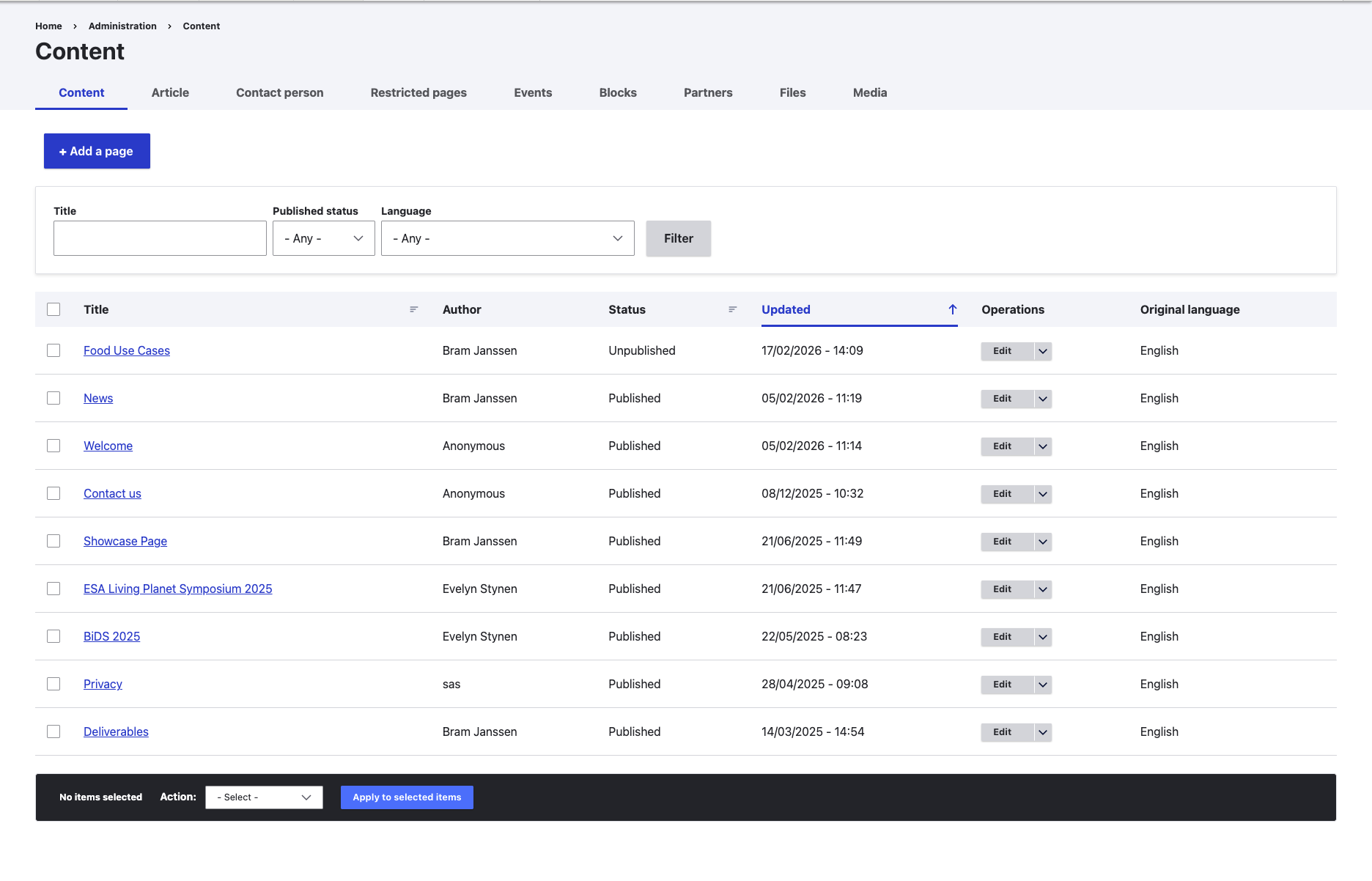
Content overview with the Add a page button

Content overview with the Add a page button

For more details about the page editor, see Manage web pages or add a new page.

Restrict access

  1. In the settings sidebar on the right of the page editor, open Access.
  2. Check Restricted.
  3. Save the page with Restricted checked.
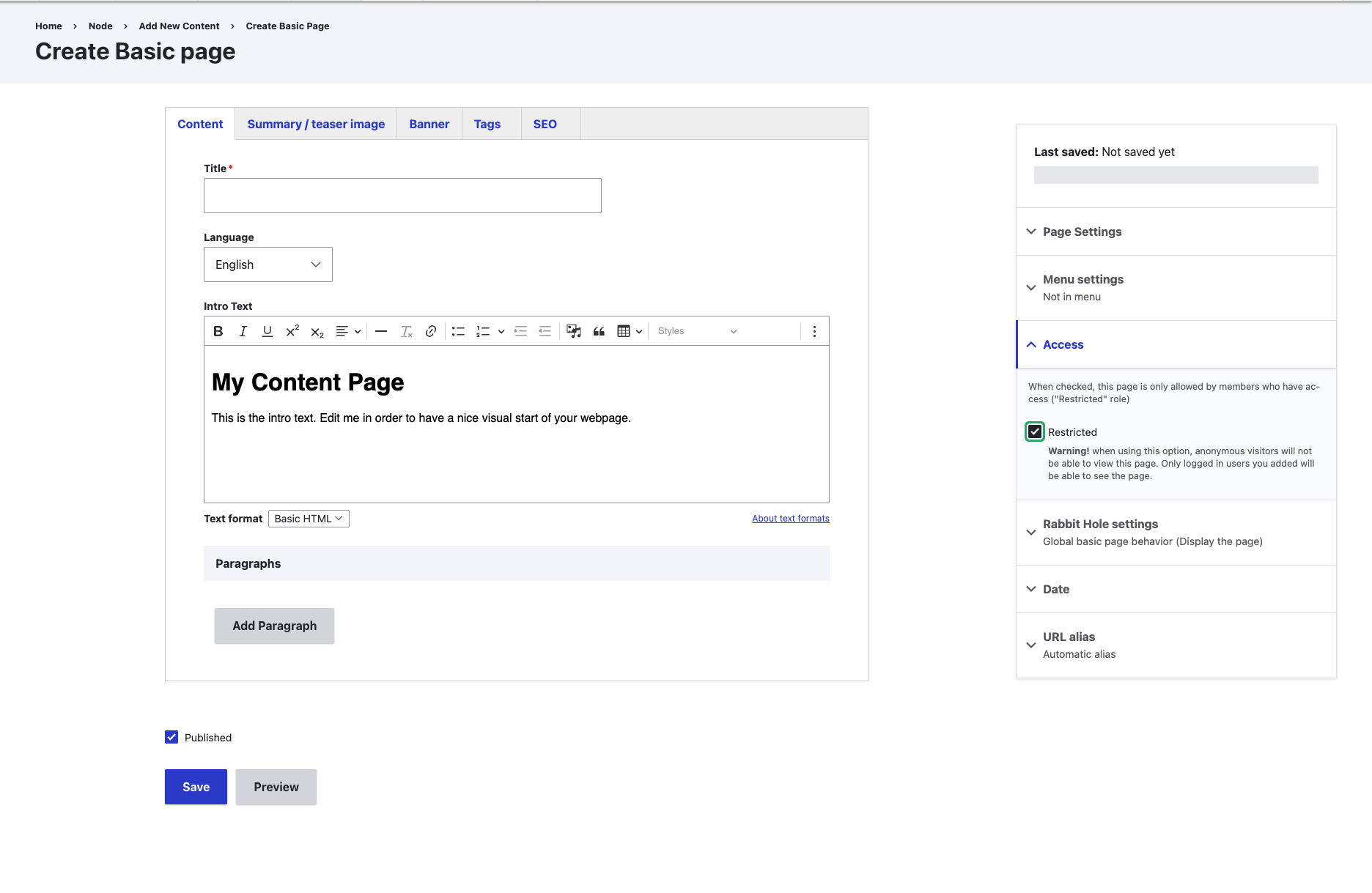
Page editor with Access expanded and Restricted checked

Page editor with Access expanded and Restricted checked

The Access panel indicates that readers need the Restricted role. Being logged in alone is not sufficient.

Set the restriction before publishing the page so that its content is not made public first. To restrict an existing page, open it for editing, change the same Access setting, and save your changes.

Check access

After saving, verify that the restriction works as intended:

  1. Open the page URL in a private browser window where you are not logged in. Confirm that the page content is not visible to anonymous visitors.
  2. Check that an intended reader can access the page using their own account. If they cannot, ask your portal administrator to check their permissions.

Removing a page from a menu does not restrict access to its URL. Use the Restricted setting to control access.

Check linked files separately

Do not assume that restricting a page also protects files or external resources linked from it. Check access to each linked resource before using the page to share confidential material.

Manage web pages or add a new page
Edit web pages via paragraphs