File format recommendations
Within the APEx interoperability and compliance guidelines, DATA-REQ-01 specifies the file formats that projects should use when publishing static data. The information on this page complement that requirement with more detailed recommendations on the use of these formats. Projects are encouraged to consult with the APEx team if they have a use case that does not fit within these guidelines.
Cloud Optimised GeoTIFF
Cloud Optimised GeoTIFF (COG) is the most widely supported format for geospatial raster data, and also one of the most efficient in terms of access costs. It is recommended as the default option to consider when publishing static data products. When combined with STAC metadata, COG can produce self-describing, FAIR-compliant datasets that are easily consumable by various services.
Generating Cloud Optimised GeoTIFF
If you are not familiar with COG or GeoTIFF generation, it is recommended to format your GeoTIFF files using a recent version of GDAL to ensure that they are compliant:
gdal_translate world.tif world_webmerc_cog.tif -of COGOrganising spatiotemporal multi-band datasets
Many datasets have multiple bands (or ‘variables’), or have a date associated with them. The general recommendation is to store a single band per GeoTIFF file and to create STAC items with one asset per band. This layout is commonly used by many other datasets and avoids the complexities of multi-band GeoTIFF files, which can be challenging to use.
An exception to this are the ‘RGB’ style products, where three bands are used to represent a single image. In this case, creating a Cloud Optimised GeoTIFF with three bands is an option.
For associating time information, create one GeoTIFF per timestamp, and one STAC item per timestamp. The GeoTIFF format has not built-in support for conveying time information, but STAC metadata is supporting this very well.
Visualisation in APEx Geospatial Explorer
To optimise visualisation in the APEx Geospatial Explorer, it is recommended to use the GoogleMapsCompatible tiling scheme- typically 256x256 pixel tiles aligned to a global grid. The default Coordinate Reference System (CRS) used in the Geospatial Explorer is Web Mercator projection (EPSG:3857) and therefore all datasets in this projection will be supported. On the fly reprojection and / or configuration of a Geospatial Explorer instance to alternative CRS’s is feasible, although we advise contact the APEx team for specific advice when using alternative projections. The BitsPerSample field must accurately reflect the data format. Overviews are essential for performance and should be generated using downsampling by factors of two until the image dimensions are the size of a tile or smaller. These overviews should also be tiled and placed after the main image data to conform with the COG specification.
(Geo-)Zarr
Zarr is a format that is gaining traction in the geospatial community, although it is not yet as widely supported as Cloud Optimised GeoTIFF. Its main advantage lies in its ability to store complex multi-dimensional datasets that go beyond a simple 4D (x, y, time, bands) structure. Just like COG, Zarr allows for efficient cloud access.
At the time of writing, there are, however these important caveats:
- GeoZarr aims to define how to store geospatial data in Zarr format, but this standard is not fully developed and lacks widespread tooling support.
- Overview pyramids for fast online rendering are not yet supported.
- By design, Zarr allows for many degrees of freedom, which requires the data producer to have a good understanding of the associated trade-offs.
- By design, Zarr stores data as separate files in a directory structure, optimising cloud access but making direct downloads less convenient.
NetCDF
NetCDF is a self-describing format with some properties similar to Zarr, but less optimised for cloud access. It can be useful for exchanging data cubes as single files through traditional methods. However, it is less recommended for convenient sharing of large datasets, for which either COG or Zarr provide better options.
Statistical Datasets (FlatGeobuf, GeoJSON)
Statistical datasets can be used to store precomputed statistics for dataset variables based on spatial units, such as administrative areas. An example is to collect land cover statistics on using boundaries from nomenclature of territorial units for statistics (NUTS), as shown in the APEx Geospatial Explorer (Statistics). The guidelines in this section are focused on supporting the integration of statistical data for visualisation in the APEx Geospatial Explorer.
The statistical datasets are expected to be vector layers that are provided in a format that can be parsed to a feature collection following the GeoJSON [1] specification. Currently tested and supported formats are GeoJSON [1] and FlatGeobuf [2]. FlatGeobuf should be used where the statistical data is a large size as this allows for streaming of the relevant features without having to download the full dataset, increasing performance.
The metadata header of the file should contain the following properties to define which fields on the features in the dataset should be used for the following purposes.
- identifierKey: The name of the field that stores the unique identifier for each feature.
- nameKey: The name of the field that stores the human-readable name for display.
- levelKey: The name of the field that stores the administrative level number.
- childrenKey: The name of the field that has a comma-separated list of child feature IDs as declared in identifierKey. Can be the empty string if this is the bottom level.
- attributeKeys: A comma-separated list of field numbers that store the statistical data.
- units: The units as displayed in the UI. This is for UI purposes only and has no effect on the data.
- visualization_hint: A string of histogram, categorised, or continuous used as a hint to the UI to choose a suitable presentation for the data.
For example, properties in the file metadata that is defined as follows:
- identifierKey: NUTS_ID
- nameKey: NUTS_NAME
- levelKey: LEVL_CODE
- childrenKey: children
- attributeKeys: Trees, Shrubland, Grassland
- visualization_hint: categorised
would use the fields NUTS_ID, NUTS_NAME, … in the data to determine the navigation and display of statistics in the Geospatial Explorer. For further guidance, please contact the APEx team through the APEx User Forum.
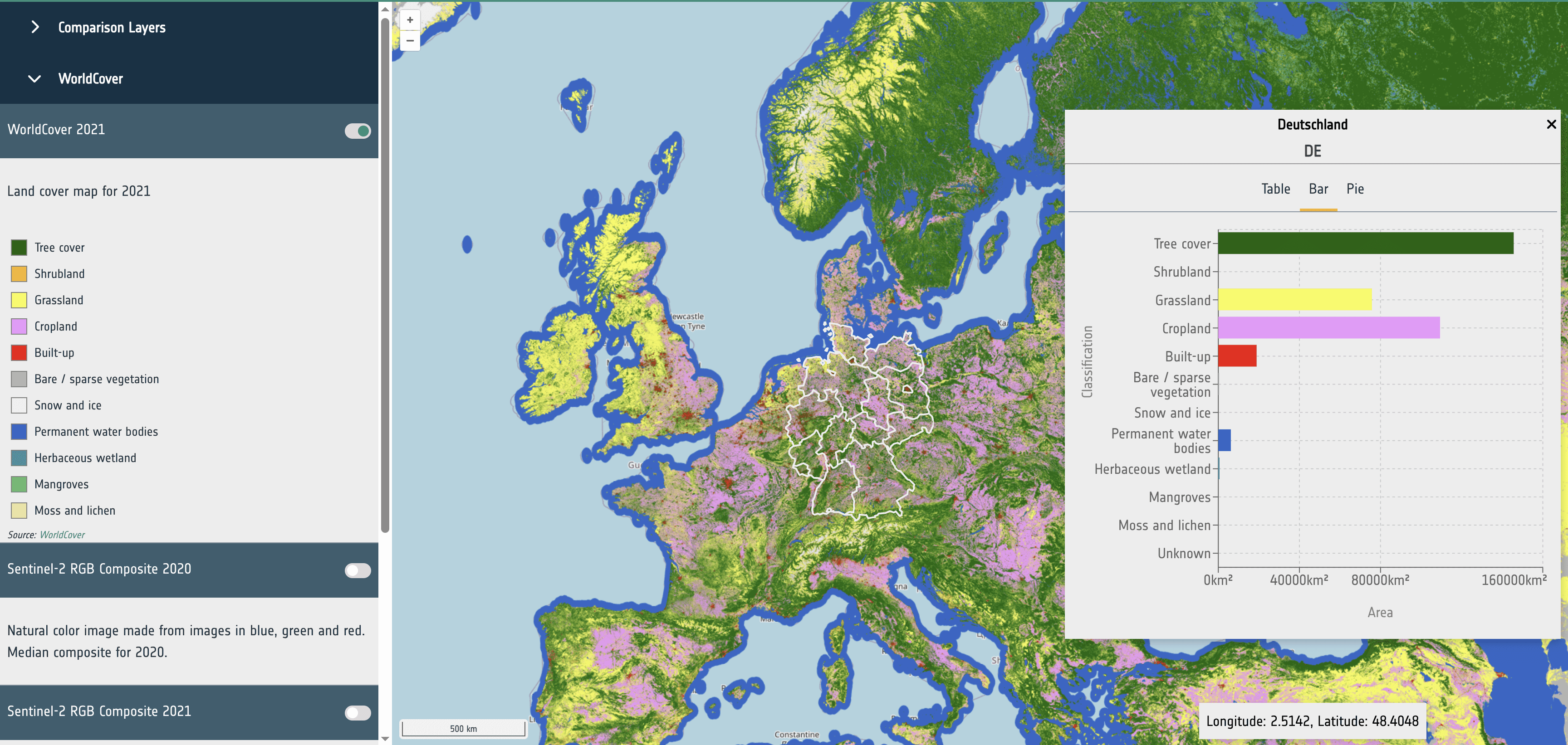
Datasets that have classifications (such as land use) should have key:value entires consisting of ‘name’:‘value’ and an entry with a key of ‘classifications’ with a value consisting of a string based comma separated list containing all the keys for the classifications and a ‘total’ key with the sum of all other values. This will allow for correctly rendering bar charts and pie charts.
{
  Bare / sparse vegetation: 3349.349614217657,
  Built-up: 18474.280639104116
  Cropland: 155067.6934300016
  Grassland: 140178.79417018566
  Herbaceous wetland: 1612.828666906516
  Mangroves: 479.46053523623897
  Moss and lichen: 499.40601429089236
  Permanent water bodies: 8969.837211370474
  Shrubland: 7342.96093361589
  Snow and ice: 495.7695064816955
  Tree cover: 301783.0035618253
  Unknown: 1.7258467103820294
  total: 638255.1101299465
  classifications: "Tree cover,Shrubland,Grassland,Cropland,Built-up,Bare / sparse vegetation,Snow and ice,
  Permanent water bodies,Herbaceous wetland,Mangroves,Moss and lichen,Unknown"
}
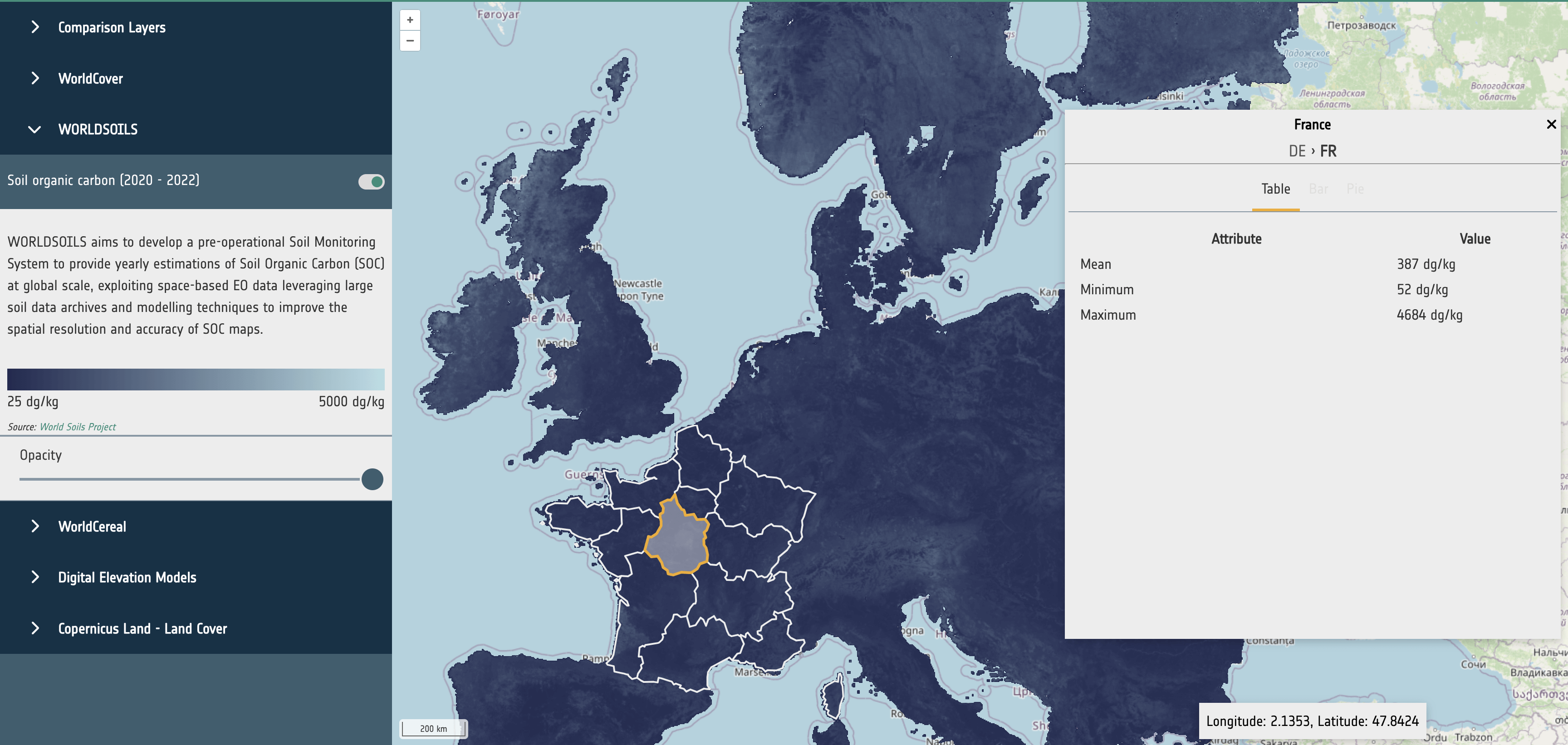
Datasets that do not have classifications (such as a raster showing soil organic carbon) should contain a selection of the following entries:
- mean
- min
- max
These values will be rendered as a table.
{
  mean: 437.94353402030356
  min: 60
  max: 4410
}